Resize Image, Compress & Print Size Pro
Simple image resizer, compressor, preview and download tool
🕋 Qilaj Islamic Activity Center
Sirf 1 minute: Qurani Hal, Tasbih ya Islamic Quiz start karein
آپ کی پریشانی کیا ہے؟
📿 33 Tasbih Challenge
33 bar SubhanAllah complete karein
🧠 Islamic Quiz Challenge
- Size
- Compress
- Preview
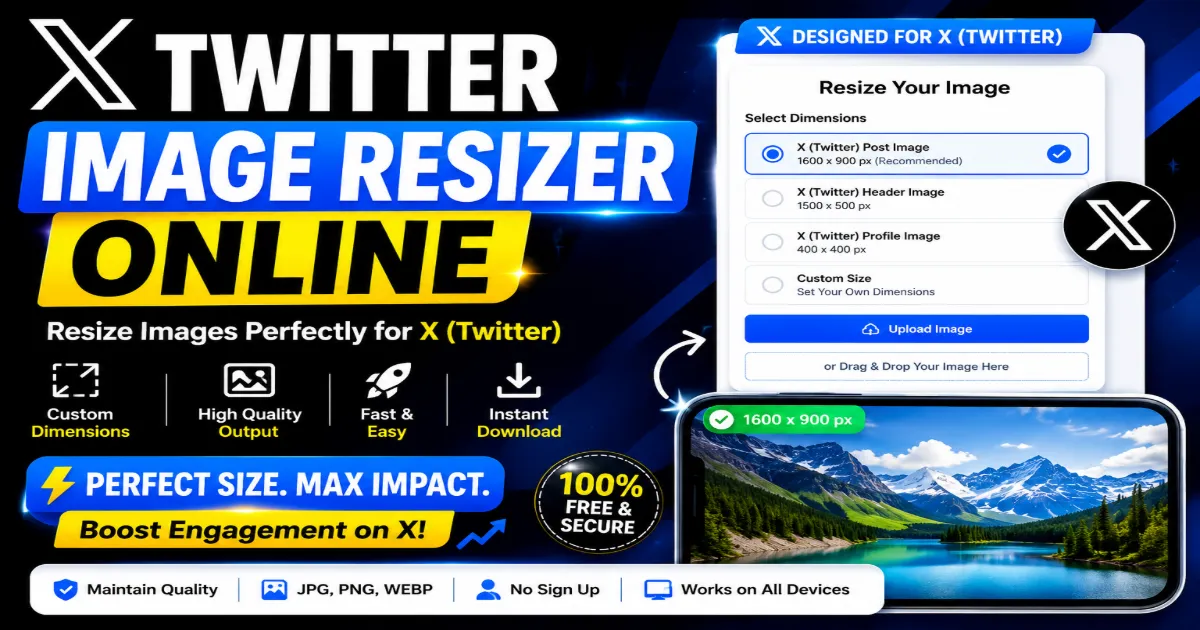
X Twitter Image Resizer Online – Resize Images for X Posts, Headers and Profiles
Use our X Twitter Image Resizer Online to resize images for X posts, profile pictures, header banners and promotional graphics without installing complicated editing software. Upload your JPG, PNG or WebP image, select the required dimensions, adjust the crop and download a properly sized image within seconds.
The tool supports popular image dimensions such as 1600 × 900 pixels, 1500 × 500 pixels, 400 × 400 pixels, 1080 × 1080 pixels, 1280 × 720 pixels, 1920 × 1080 pixels, 1024 × 576 pixels and many other custom sizes. It is suitable for social media creators, bloggers, marketers, online businesses and users who need a fast way to prepare images for X, formerly known as Twitter.
Resize Images for X Twitter Without Losing Quality
Images uploaded to X may appear blurred, stretched, cropped or poorly positioned when their dimensions do not match the intended placement. A post image requires a different layout from a profile picture, while an X header needs a much wider aspect ratio. Our online image resizer helps you select the correct size before publishing.
Instead of manually calculating width, height and aspect ratio, you can choose a preset or enter your own custom dimensions. The tool then creates a clean output that is easier to upload and more suitable for X posts, banners, advertisements, announcements, quote graphics and promotional visuals.
Image resizing does not simply mean making a photo smaller. A useful resizer must preserve important details, maintain the correct proportions and prevent faces, logos or text from being cut off. Our X Twitter image resizing workflow is designed to make these adjustments simple for both beginners and experienced content creators.
Popular X Twitter Image Sizes
X supports several types of visuals, and each one benefits from suitable dimensions. Using the right image size can help your content appear more professional across desktop screens, tablets and mobile devices.
X Post Image Size
A landscape image measuring approximately 1600 × 900 pixels is a practical option for X posts. This 16:9 format is widely used for social media graphics, article previews, promotional banners, news visuals and video thumbnails.
You can also create an 1280 × 720 image or a 1920 × 1080 image when you need another 16:9 resolution. These dimensions are useful for visuals that may also be reused on websites, presentations, YouTube thumbnails or other social platforms.
X Header Image Size
X profile headers use a wide banner format. A commonly used header size is 1500 × 500 pixels. Because header images may be displayed differently on various devices, important text and logos should be placed near the center of the design.
Keep critical information away from the outer edges. The profile picture can also cover part of the lower-left area of the header, so avoid placing important words or faces in that position.
X Profile Picture Size
A 400 × 400 image works well as an X profile photo. Profile pictures are displayed in a circular frame, which means the corners of a square image may not be visible after uploading.
Place the face, logo or central icon in the middle of the canvas. Leave enough space around the subject to prevent it from being cropped by the circular profile frame.
Square Image Size for X Posts
Square images are useful for quotes, product displays, announcements and cross-platform social media campaigns. Common choices include a 1080 × 1080 image, 1000 × 1000 image, 1024 × 1024 image and 1400 × 1400 image.
A square layout is especially helpful when the same visual needs to be shared on X, Instagram, Facebook, LinkedIn or Pinterest. You can create one high-quality square design and resize additional copies for each platform.
How to Use the X Twitter Image Resizer Online
Our tool follows a simple workflow, allowing you to resize an image without learning advanced photo-editing techniques.
Step 1: Upload Your Image
Select an image from your computer, mobile phone or tablet. Depending on the tool configuration, you may upload JPG, JPEG, PNG or WebP files. For the best result, start with a clear, high-resolution image.
Step 2: Select an X Image Preset
Choose a preset for an X post, header image or profile picture. You may also enter custom width and height values when you need a particular pixel size.
Step 3: Adjust the Crop
Reposition the image so the main subject remains visible. You may use fit, fill, crop or stretch settings depending on how you want the final image to appear.
Step 4: Preview the Result
Check the image before downloading it. Make sure the text is readable, faces are not cut off and important content is not too close to the edges.
Step 5: Download the Resized Image
Select the required output format and download your image. You can then upload it directly to X or use it in another social media campaign.
Resize an Image to 3000 × 3000 Pixels
A 3000 × 3000 image is a large square image suitable for high-resolution artwork, product graphics, social media designs, album covers, printable visuals and brand assets. Users frequently need a 3000 × 3000 image converter when a platform, client or design project requires an exact square resolution.
To make an image 3000 × 3000 pixels, upload your source file, set the width to 3000 and the height to 3000, then choose whether the image should be cropped or fitted inside the square canvas. If the original image is rectangular, cropping may remove some content from the sides or top and bottom.
Our 3000 × 3000 image resizer can help you convert an existing image into the required dimensions. However, increasing a very small picture to 3000 × 3000 pixels cannot recreate missing details. For sharper output, begin with the largest available original file.
How to Make an Image 3000 × 3000
- Upload a clear JPG, PNG or WebP image.
- Enter 3000 in the width field.
- Enter 3000 in the height field.
- Select crop, fit or fill mode.
- Preview and download the converted image.
This method can be used when you need to resize an image to 3000 × 3000, convert an image to 3000 × 3000 or prepare multiple 3000 × 3000 images for an online project.
Convert an Image to 1024 × 1024 Pixels
A 1024 × 1024 image is commonly used for app icons, profile graphics, digital artwork, website elements, social posts and AI-generated images. The square format provides enough resolution for many online uses without creating an unnecessarily large file.
When creating an image 1024 × 1024 pixels, keep important elements in the center. If the image will later be displayed as a circle or icon, leave additional space around logos and faces.
You can also use the tool as a 1024 × 1024 image converter by entering the required dimensions manually. For better quality, avoid enlarging extremely small or blurry source images.
Resize an Image to 1024 × 576 Pixels
A 1024 × 576 image uses a 16:9 aspect ratio. This size is suitable for article thumbnails, social media previews, presentation slides and lightweight web graphics.
Some platforms display a requirement stating that images must be at least 1024 × 576 pixels. In that situation, your image should have a minimum width of 1024 pixels and a minimum height of 576 pixels.
A 1024 × 576 pixels image is smaller than 1920 × 1080 but maintains the same widescreen ratio. This makes it helpful when you want a faster-loading file while preserving a familiar landscape layout.
Resize an Image to 512 × 512 Pixels
A 512 × 512 image is widely used for website icons, profile pictures, app graphics, avatars and compact square visuals. Users can use the online tool as a 512 × 512 image converter without downloading desktop editing software.
To resize an image to 512 × 512, upload your file and enter 512 for both width and height. Select a square crop when you want the image to completely fill the frame. Select fit mode when you need the complete source image to remain visible.
Because 512 × 512 images are relatively small, fine text and tiny design elements may become difficult to read. Use larger fonts, simple shapes and clear contrast when creating graphics at this size.
Resize Images to 256 × 256, 128 × 128 and 64 × 64 Pixels
Small square dimensions are often needed for icons, avatars, favicons, account images and user interface elements.
256 × 256 Image Converter
A 256 × 256 image provides a useful balance between compact file size and visible detail. A 256 × 256 image converter can be used to create icons, profile graphics and thumbnail images for websites or apps.
128 × 128 Pixel Image
A 128 × 128 image is suitable for small account avatars, dashboard icons and compact website elements. When preparing a 128 × 128 pixel image, avoid long text and detailed backgrounds because they may become unclear.
64 × 64 Image
A 64 × 64 image is commonly used for tiny icons and interface graphics. Since the canvas is very small, use a simple symbol, logo or face with strong contrast.
Reducing images to 256 × 256, 128 × 128 or 64 × 64 pixels can also help decrease file size and improve loading speed. Always preview the final image because details visible in the original may disappear after resizing.
Create 1000 × 1000, 1400 × 1400 and 1080 × 1080 Images
Square image sizes are popular because they work across many websites and social networks. They are ideal for quote graphics, product images, profile designs, announcements and promotional cards.
1000 × 1000 Image Converter
A 1000 × 1000 image converter can create clean square images for websites, social media posts and online stores. The resolution is large enough for detailed web graphics while remaining manageable for everyday uploading.
Make an Image 1400 × 1400
A 1400 × 1400 image offers more resolution than a 1000 × 1000 image. It can be useful for product graphics, artwork, social campaigns and high-quality square visuals.
To make an image 1400 × 1400, upload the original photo, enter the dimensions and choose the most suitable crop method. The online tool can also function as a 1400 × 1400 image converter.
1080 × 1080 Image
A 1080 × 1080 image is one of the most familiar social media dimensions. It is useful for campaigns shared across X, Instagram, Facebook and other platforms.
When preparing a 1080 × 1080 graphic, keep headings short, use readable text and leave enough spacing around the edges. This can improve readability on smaller mobile screens.
Other Supported Image Dimensions
The custom image resizer can also help create many other popular pixel dimensions.
500 × 500 Image
A 500 × 500 image is suitable for avatars, logos, product thumbnails and small square graphics. It offers more detail than 256 × 256 while keeping the file relatively compact.
600 × 600 Image
An image 600 × 600 pixels can be used for profile graphics, social posts, store images and website thumbnails. The square format makes it easy to crop and reuse on multiple platforms.
840 × 840 Pixel Image
An 840 × 840 pixel image converter can prepare square visuals for platforms or templates requiring this specific resolution. Enter 840 as both the width and height, then adjust the crop before downloading.
320 × 320 Image Converter
A 320 × 320 image converter is helpful for small profile pictures, icons and website thumbnails. Use a clear source image because detailed content may become less visible after reduction.
300 × 300 Image Converter
A 300 × 300 image is frequently used for avatars, online directories, account pictures and compact product thumbnails. Center the main subject to ensure it remains visible.
640 × 480 Image
A 640 × 480 image uses a traditional 4:3 aspect ratio. It may be used for older presentation formats, web images, documentation and simple photo previews.
Convert an Image to 1920 × 1080 Pixels
A 1920 × 1080 image converter creates Full HD landscape visuals. This dimension is widely used for desktop wallpapers, video thumbnails, presentation backgrounds, social media graphics and website hero images.
The 1920 × 1080 image size follows the 16:9 aspect ratio. It provides more detail than 1280 × 720 or 1024 × 576, although the resulting file may also be larger.
When preparing a 1920 × 1080 visual for the web, consider exporting it as WebP or a compressed JPG. This can reduce loading time while maintaining acceptable visual quality.
How to Make an Image 2048 × 2048 Pixels
A 2048 × 2048 image is a high-resolution square graphic often used for digital artwork, icons, social media assets and online design projects. To make an image 2048 × 2048, upload a high-quality source file and enter 2048 for both dimensions.
If the source image has a different aspect ratio, choose crop mode to completely fill the square. Choose fit mode when you want to preserve the full image and do not mind adding empty space around it.
Increasing a low-resolution image to 2048 × 2048 may make pixelation more visible. A larger output resolution does not automatically improve the actual detail of the source photo.
Crop, Fit, Fill or Stretch: Which Option Should You Choose?
The selected resizing mode has a major effect on the final image.
Crop
Crop mode fills the complete output canvas while maintaining the original proportions. Parts of the image may be removed when the source and target aspect ratios are different.
Fit
Fit mode displays the complete image inside the selected dimensions. Empty space may appear around the sides or top and bottom.
Fill
Fill mode enlarges the image until the entire canvas is covered. Like crop mode, some outer areas may be removed.
Stretch
Stretch mode forces the image into the exact width and height without maintaining its original proportions. This can make faces, objects and logos appear unusually wide or narrow, so it should be used carefully.
How to Maintain Image Quality While Resizing
Image quality depends on the original resolution, compression level, output format and amount of enlargement. Follow these practices for cleaner results:
- Start with the highest-quality original image available.
- Avoid repeatedly resizing and saving the same JPG file.
- Use PNG for logos, screenshots and graphics requiring transparency.
- Use JPG for photographs and images with many colors.
- Use WebP for smaller web images with good visual quality.
- Keep important subjects away from the outer edges.
- Preview the image at its actual display size before publishing.
- Avoid excessive enlargement of very small source images.
Resizing an image from 3000 × 3000 to 1000 × 1000 usually produces a cleaner result than enlarging a 128 × 128 image to 1000 × 1000. Reducing dimensions removes pixels, while enlargement must estimate new pixels from limited source information.
JPG, PNG or WebP: Which Image Format Is Best?
JPG
JPG is suitable for photographs, banners and colorful social media images. It can create relatively small files, but repeated compression may reduce quality.
PNG
PNG is useful for logos, screenshots, graphics, transparent backgrounds and images containing sharp text. PNG files may be larger than JPG files.
WebP
WebP is a modern format designed to provide good quality with smaller file sizes. It is useful for websites, blogs, online tools and social media graphics when the destination supports it.
For X posts, JPG is usually suitable for photos, while PNG can be helpful for text-based graphics and logos. You can use WebP for website versions and export an additional JPG or PNG copy for social sharing.
Why Image Dimensions Matter for X Engagement
The quality of your content remains the most important factor, but presentation can influence whether users stop scrolling and view your post. Correct dimensions make graphics easier to understand and reduce the risk of important information being cropped.
A properly resized X image can provide several practical benefits:
- Cleaner appearance in the X feed.
- Better readability on mobile devices.
- Reduced risk of cropped titles and logos.
- More consistent brand presentation.
- Faster uploading when file size is optimized.
- Easier reuse across multiple social networks.
Avoid placing too much text inside one image. Use a short headline, a clear visual subject and enough spacing to make the design understandable at a glance.
Who Can Use This X Twitter Image Resizer?
The tool is useful for many different users and projects, including:
- Social media managers preparing daily X posts.
- Bloggers creating article preview graphics.
- YouTubers resizing thumbnails for X promotion.
- Small businesses designing product announcements.
- Freelancers preparing client social media graphics.
- Students creating project and event visuals.
- News websites sharing headlines and breaking-news graphics.
- Online stores publishing offers and product images.
- Designers converting one image into multiple dimensions.
Frequently Asked Questions
What is the best image size for an X Twitter post?
A landscape size such as 1600 × 900 pixels is a practical option for many X posts. You can also use 1280 × 720 or 1920 × 1080 because they follow the same 16:9 aspect ratio.
What is the recommended X profile picture size?
A 400 × 400 pixel square image is commonly used for X profile pictures. Keep the main subject centered because the image is normally displayed inside a circular frame.
What size should an X header image be?
A widely used X header size is 1500 × 500 pixels. Place important text and logos near the center because some areas may be cropped on different screens.
Can I resize an image to 3000 × 3000 pixels?
Yes. Enter 3000 as both the width and height, select crop or fit mode and download the resulting square image.
How do I convert an image to 512 × 512?
Upload the image, set the width to 512 pixels and the height to 512 pixels, adjust the crop and export the final image as JPG, PNG or WebP.
Can I make a 1024 × 1024 image online?
Yes. Select custom dimensions, enter 1024 for both width and height and choose the required output format.
What does “images must be at least 1024 × 576 pixels” mean?
It means the uploaded image should have a minimum width of 1024 pixels and a minimum height of 576 pixels. A smaller image may be rejected by the platform.
Will resizing an image reduce its quality?
Reducing dimensions usually maintains acceptable quality when the export settings are suitable. Enlarging a very small image may cause blur or pixelation because the original file does not contain enough detail.
Can I resize an image without cropping?
Yes. Select fit mode to preserve the complete image. Depending on the aspect ratio, empty space may be added around the image.
Which format is best for X images?
JPG is suitable for photographs, while PNG is useful for logos, screenshots and text-based graphics. WebP is a good choice for optimized website images.
Can I create a 1280 × 720 image?
Yes. Enter 1280 pixels as the width and 720 pixels as the height. This creates a standard 16:9 landscape image.
Can I resize images on a mobile phone?
Yes. The online resizer can be used through a supported mobile browser without installing desktop software.
Can I resize multiple images for X?
If bulk processing is available in the tool, you can upload several images and apply the same dimensions. Otherwise, resize each image individually for more precise cropping.
What size should I use for a square X post?
You may use 1080 × 1080, 1000 × 1000, 1024 × 1024 or 1400 × 1400 pixels. The best choice depends on your source image and how the graphic will be reused.
Is the X Twitter Image Resizer free?
The basic resizing features can be offered free of charge, although availability may depend on the tool’s current configuration and usage limits.
Resize Your X Twitter Image Now
Prepare professional images for X posts, profile pictures, header banners and marketing campaigns using the online image resizer. Select a ready-made X preset or create custom dimensions such as 3000 × 3000, 1920 × 1080, 1400 × 1400, 1080 × 1080, 1024 × 1024, 1024 × 576, 512 × 512, 400 × 400, 256 × 256, 128 × 128 or 64 × 64 pixels.
Upload your image, select the required dimensions, adjust the crop and download the optimized result. No complicated design experience is required.